Connect GRAFHIX to Claude
Last updated: June 21, 2026
GRAFHIX has a remote MCP connector that lets Claude create and edit designs directly in your GRAFHIX account, browse the image library, and check available canvas sizes — right from a normal chat. No coding or API keys required, just your GRAFHIX login.
Connector URL
Use this URL when adding GRAFHIX as a custom connector in Claude:
https://grafhix.com/mcp
How to connect
- In Claude, click your profile picture → Customize → Connectors (or go directly to claude.ai/customize/connectors). If you land on Settings → Connectors instead, click the "Customize" link shown there.
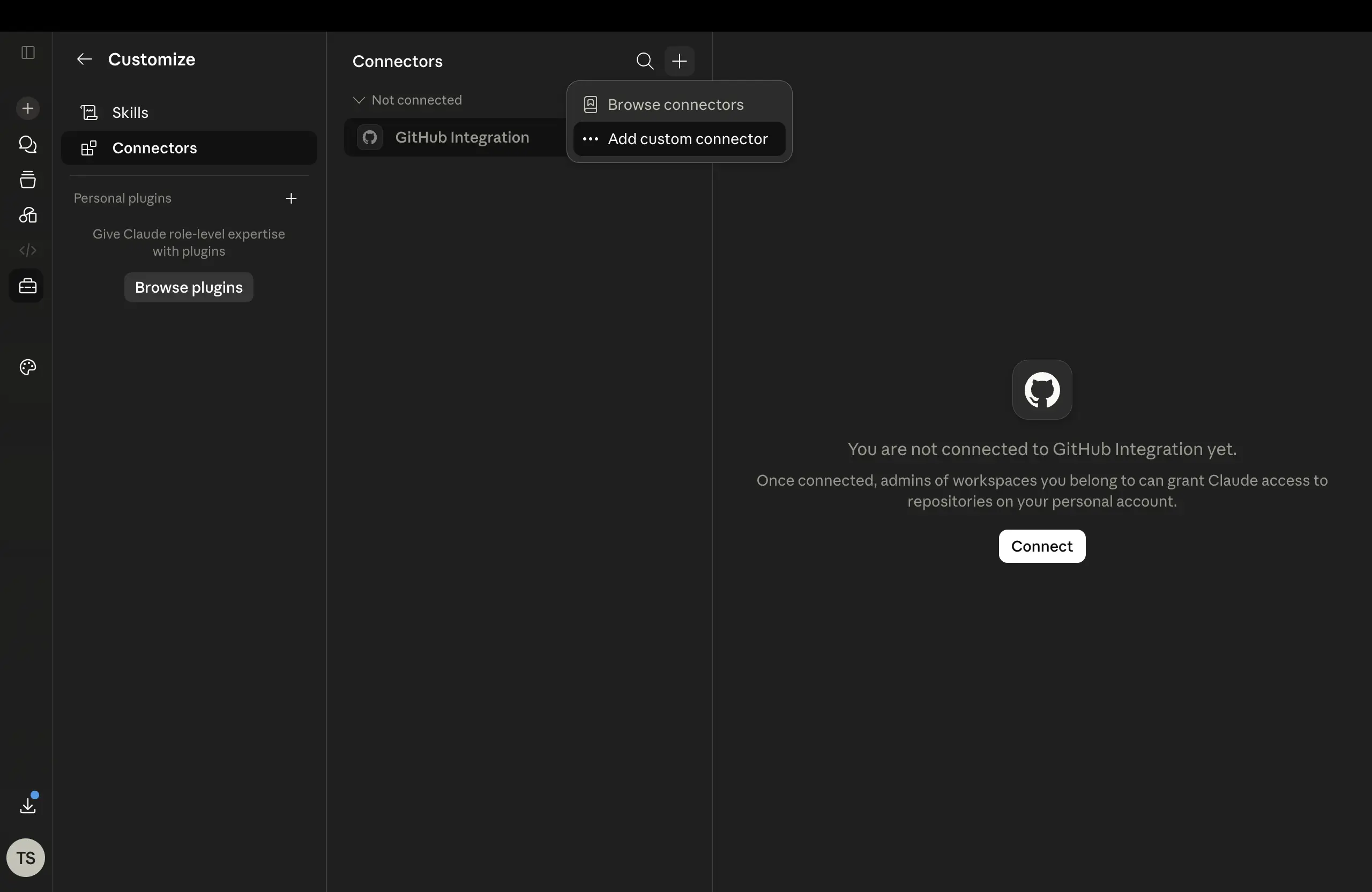
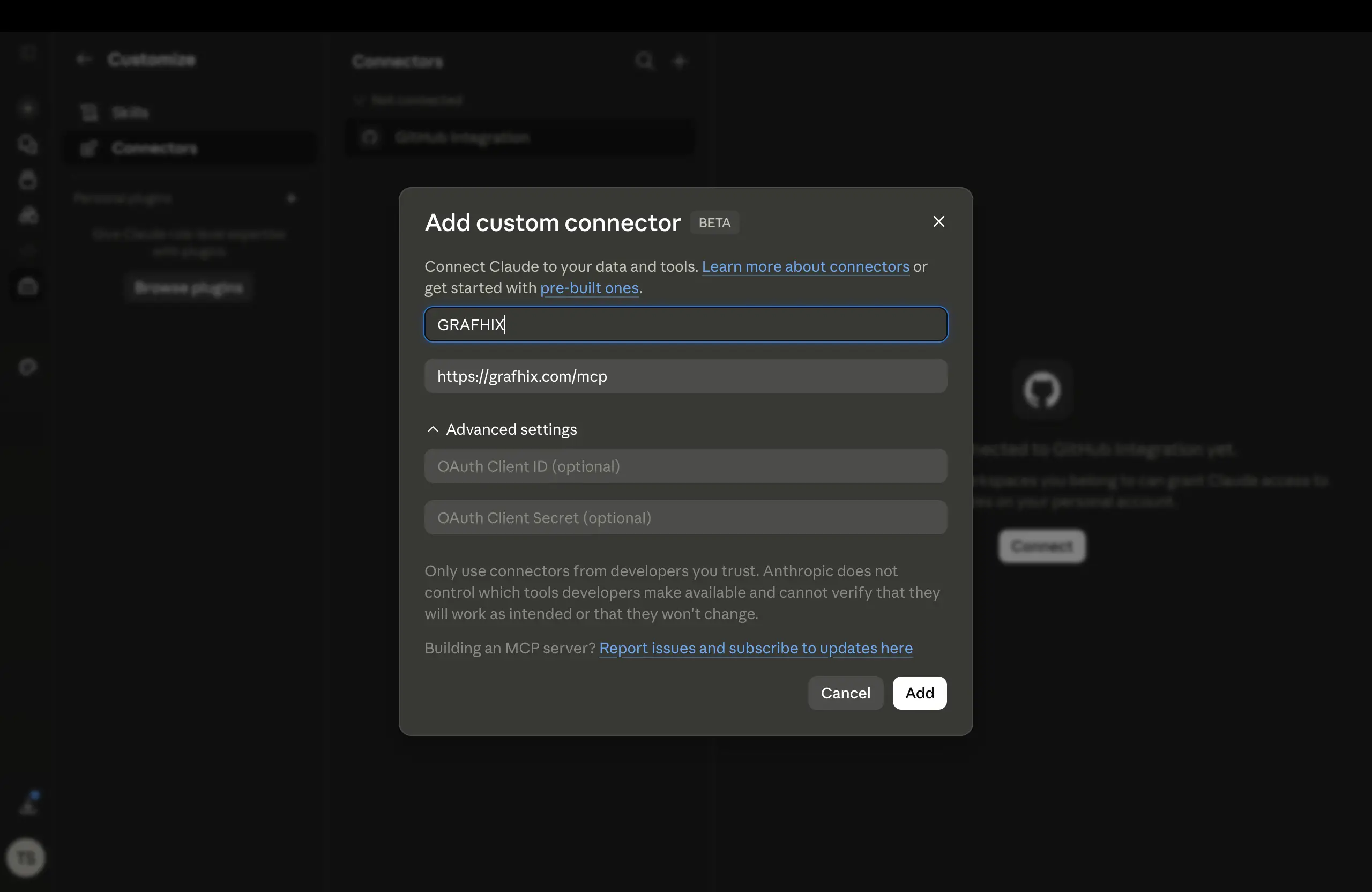
- Click +, then Add custom connector. A form will appear — fill it in like this:
- Name: anything you like, e.g. "GRAFHIX"
- Remote MCP server URL: paste the URL above (
https://grafhix.com/mcp) - Advanced settings (OAuth Client ID / OAuth Client Secret): leave both blank — GRAFHIX registers itself with Claude automatically, no manual keys needed
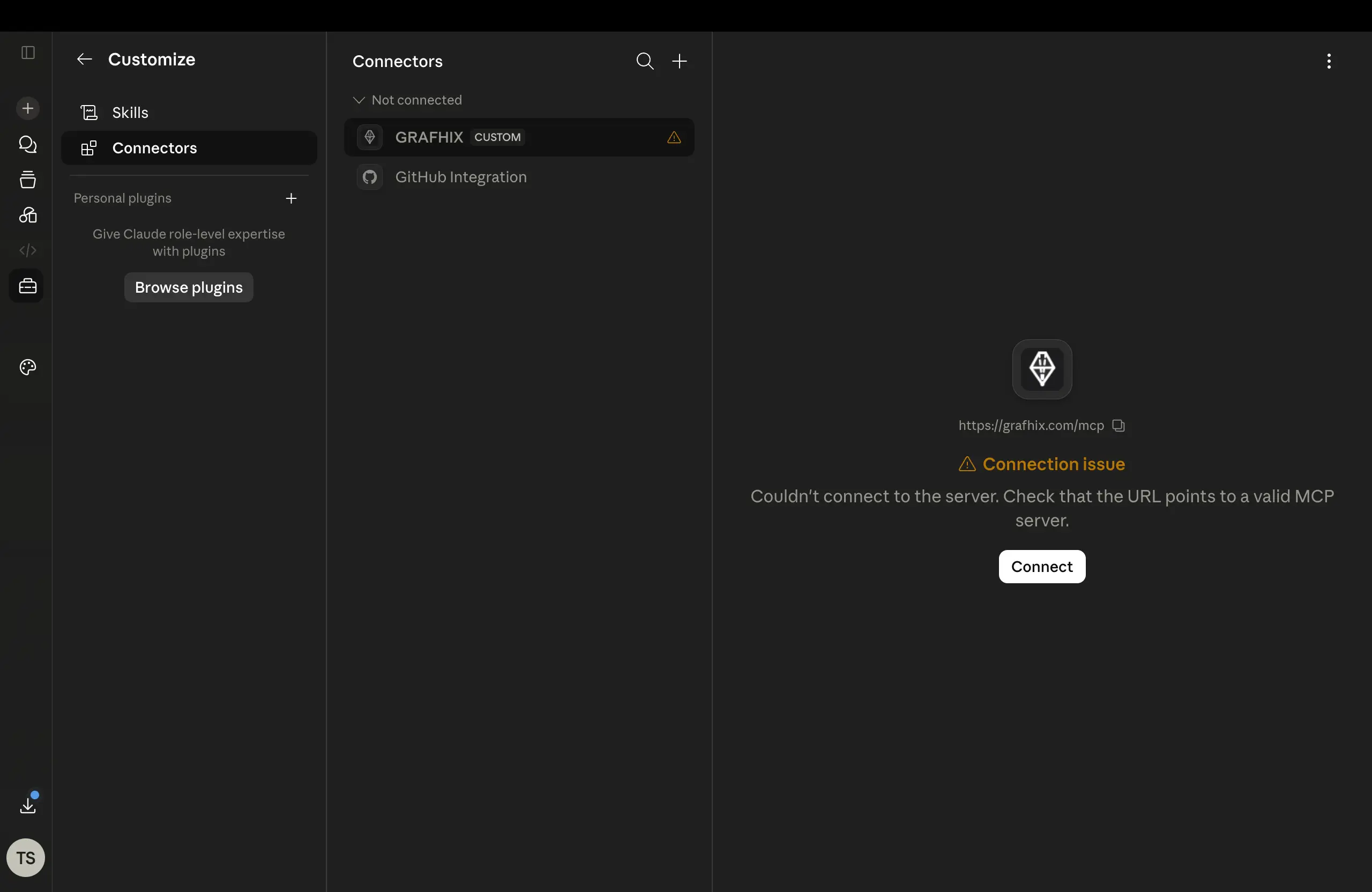
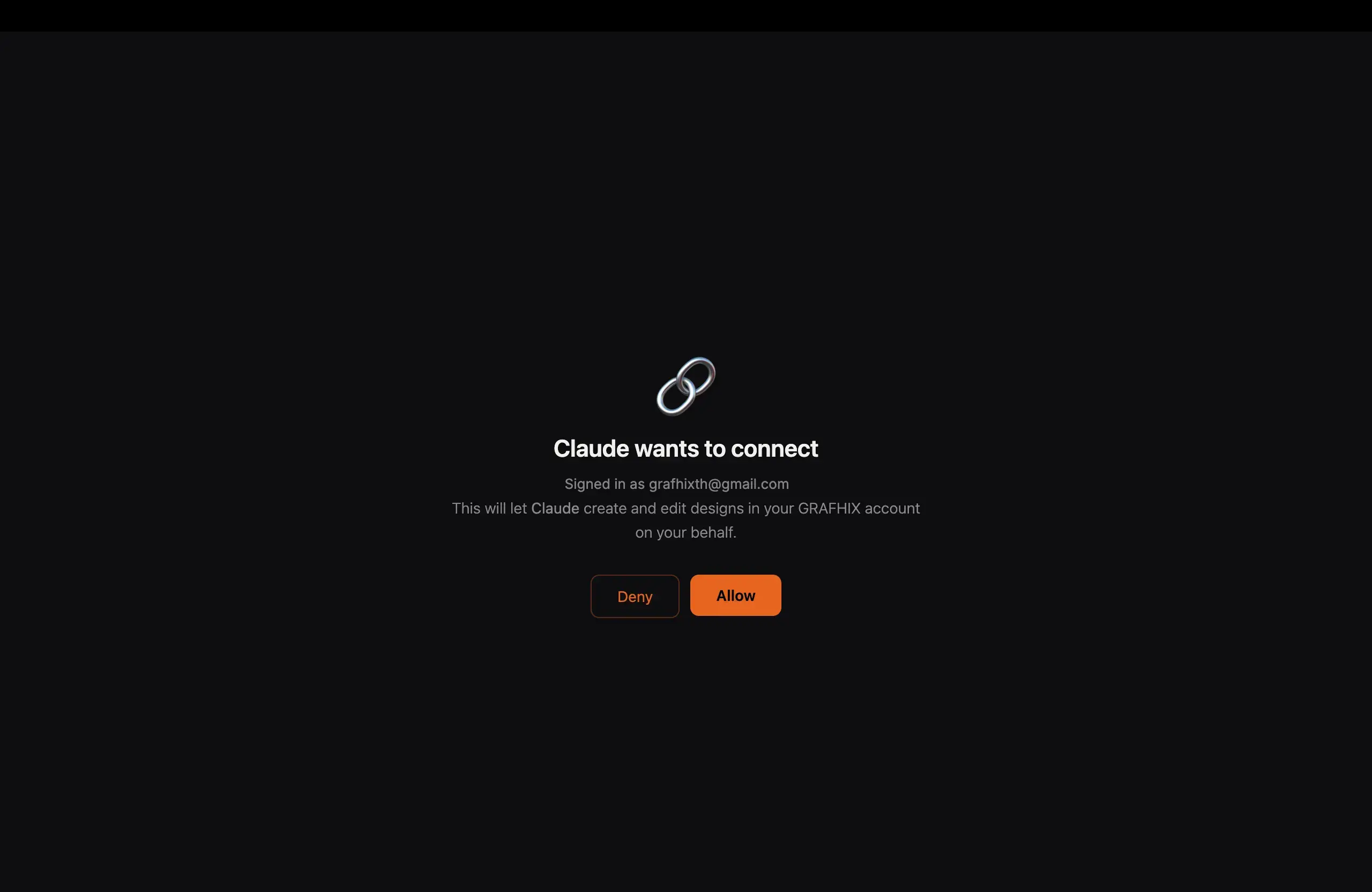
- Click Connect next to GRAFHIX in your connectors list. Claude will take you to GRAFHIX to log in (if you aren't already) and show a screen asking you to allow Claude access to your account.
- Click Allow. You're connected — GRAFHIX now appears in your Connectors list.
- In any chat, click the + button below the message box → Connectors → turn on GRAFHIX for that conversation.
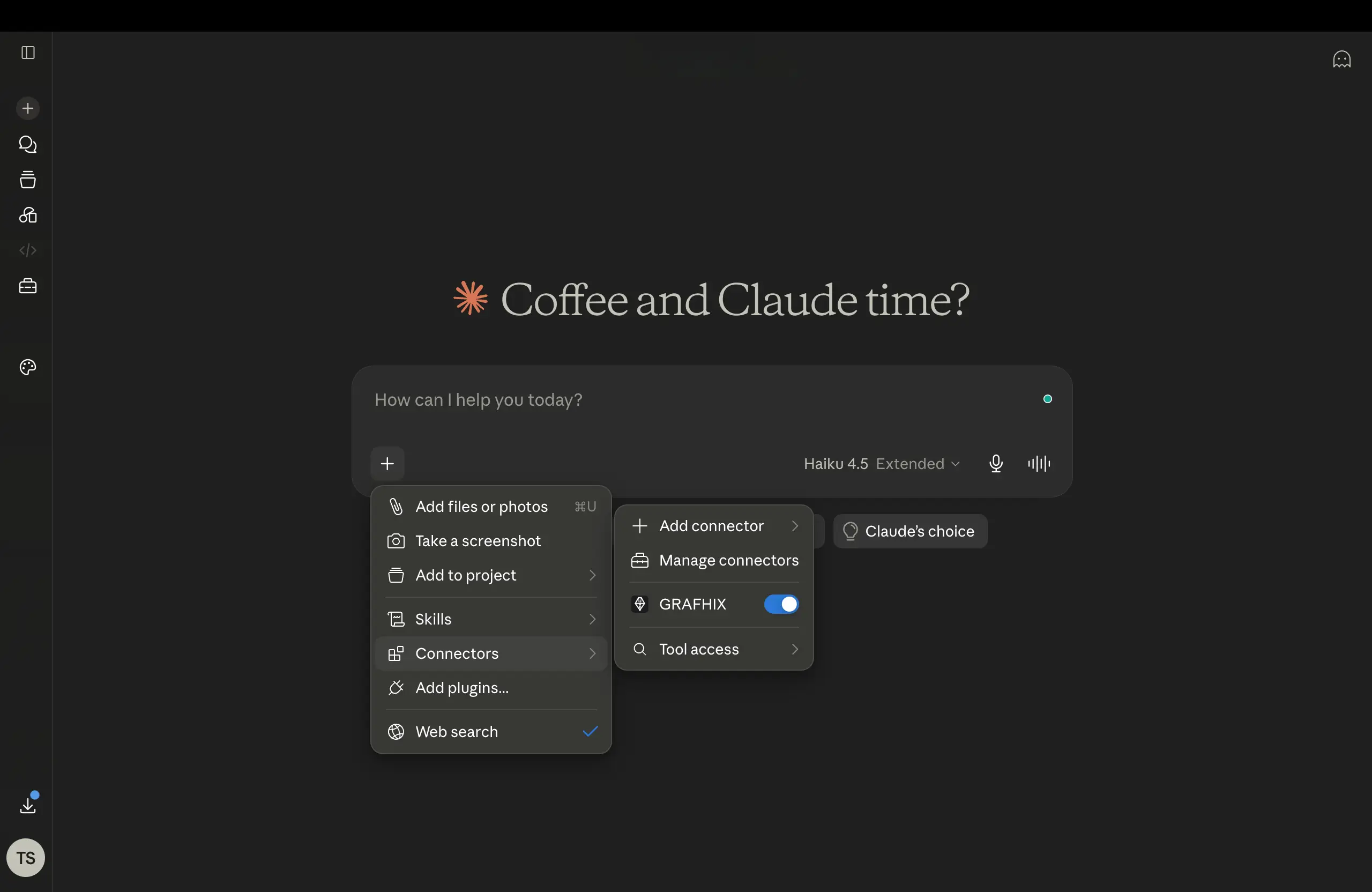
What Claude can do once connected
Generate a new design — social media post, poster, banner, and more — directly inside your GRAFHIX account, ready to open and edit further.
List the canvas size presets available in GRAFHIX (Instagram post, Facebook cover, A4 poster, etc.).
Search the GRAFHIX image library (including stock photos) for images to use in a design.
Example prompts
Managing or revoking access
You can see and revoke Claude's access at any time from GRAFHIX → Settings → API Tokens. The connection will be listed as "Claude (OAuth)" — click Revoke to disconnect it immediately.
Privacy
Claude can only access what you approve during the connection step — see our Privacy Policy for details on how OAuth-connected apps are handled.
Need help?
Contact us at [email protected] or visit our support center.